> ## Documentation Index
> Fetch the complete documentation index at: https://guides.runner.now/llms.txt
> Use this file to discover all available pages before exploring further.
# Moving from Runner Desktop
> Runner Desktop (v1) retires September 1st, 2026. Move to Runner on the web in about 15 minutes.
Runner started as a desktop app. We launched in April, you gave us a ton of feedback, and the loudest theme was simple: I want Runner everywhere, and I don't want it to stop when my laptop closes.
Runner v2 is that. It lives at [app.runner.now](https://app.runner.now), runs on a dedicated virtual computer in the cloud, and works from any browser on any device. This page gets you moved over.
**The dates that matter:**
* **August 3rd, 2026:** Last new features shipped to Runner Desktop.
* **August 14th, 2026:** Migrate before this date and we'll give you a month of Runner free. Message [charlie@runner.now](mailto:charlie@runner.now) on Slack or email to claim it.
* **September 1st, 2026:** Support for Runner Desktop ends. After this date you can only use it with your own API key.
## What moves, what doesn't
The migration brings over the things Runner has learned about you:
| From Desktop | On the web |
| ------------------- | --------------------------------------------------------------------- |
| Memories | Move over as-is |
| Skills | Appear under **Workflows** |
| Automations | Appear under **Runners**, turned off by default so nothing runs twice |
| Individual chats | Moved one at a time with `/move-to-runner-web` |
| Billing and credits | Already linked. Accounts are tied by email address. |
| Connected apps | **Don't move.** For security reasons you reconnect them on the web. |
***
## Migrate in five steps
Open any browser and go to [app.runner.now](https://app.runner.now).
Use the same email address you use on desktop. Accounts are tied together by email, so your billing and credits are already there waiting for you.
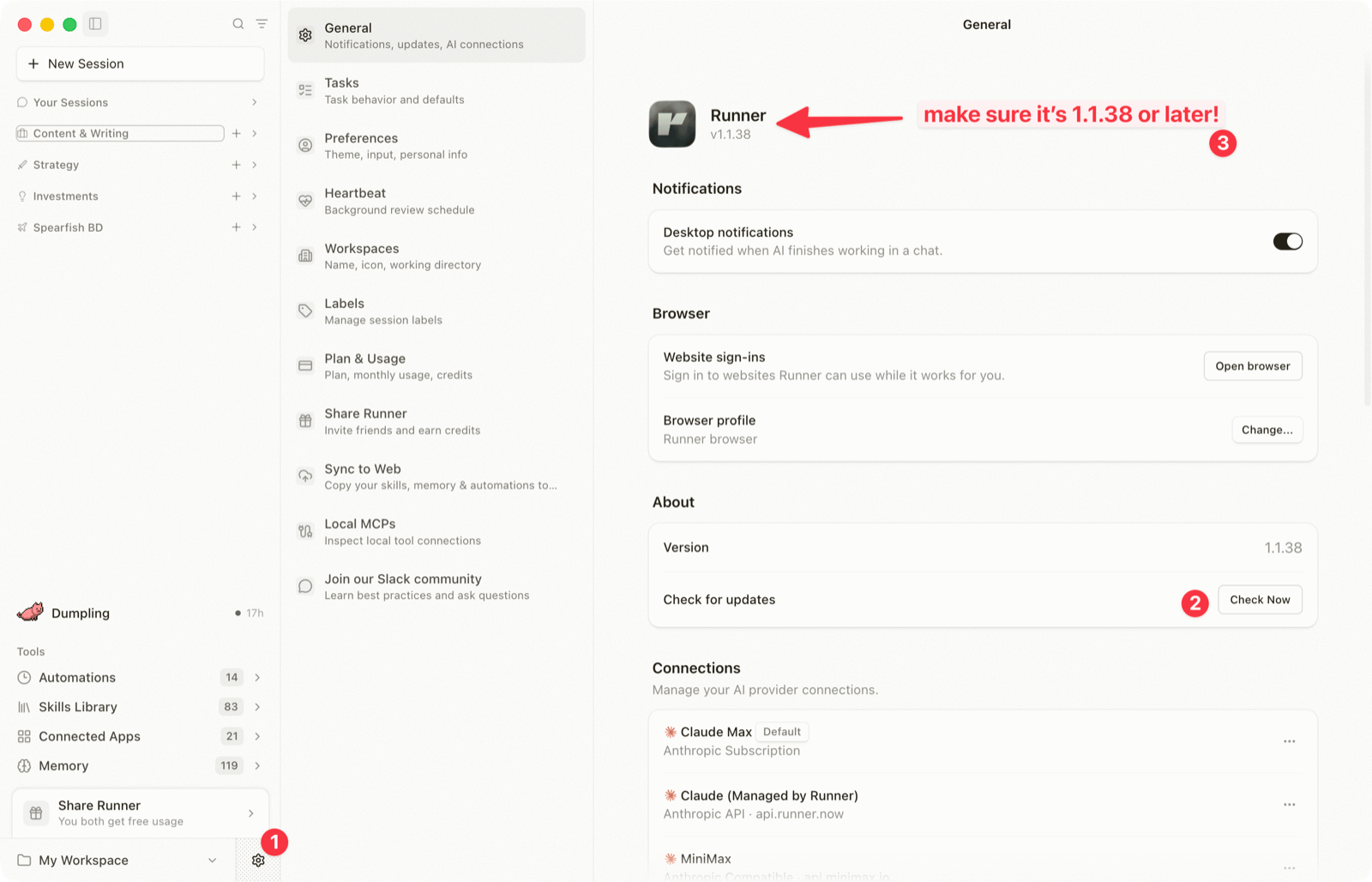
Open Runner Desktop, click the settings gear in the bottom left, and under **General** hit **Check Now** next to "Check for updates". The migration tools shipped in v1.1.38, so make sure the version says 1.1.38 or later.
 In your desktop **Settings**, click **Sync to Web**, then press the button to start.
This copies your memories, skills, and automations to your web account. It takes about 1 to 5 minutes depending on how many files you have. Automations land under **Runners** turned off by default. Skills land under **Workflows**.
In your desktop **Settings**, click **Sync to Web**, then press the button to start.
This copies your memories, skills, and automations to your web account. It takes about 1 to 5 minutes depending on how many files you have. Automations land under **Runners** turned off by default. Skills land under **Workflows**.
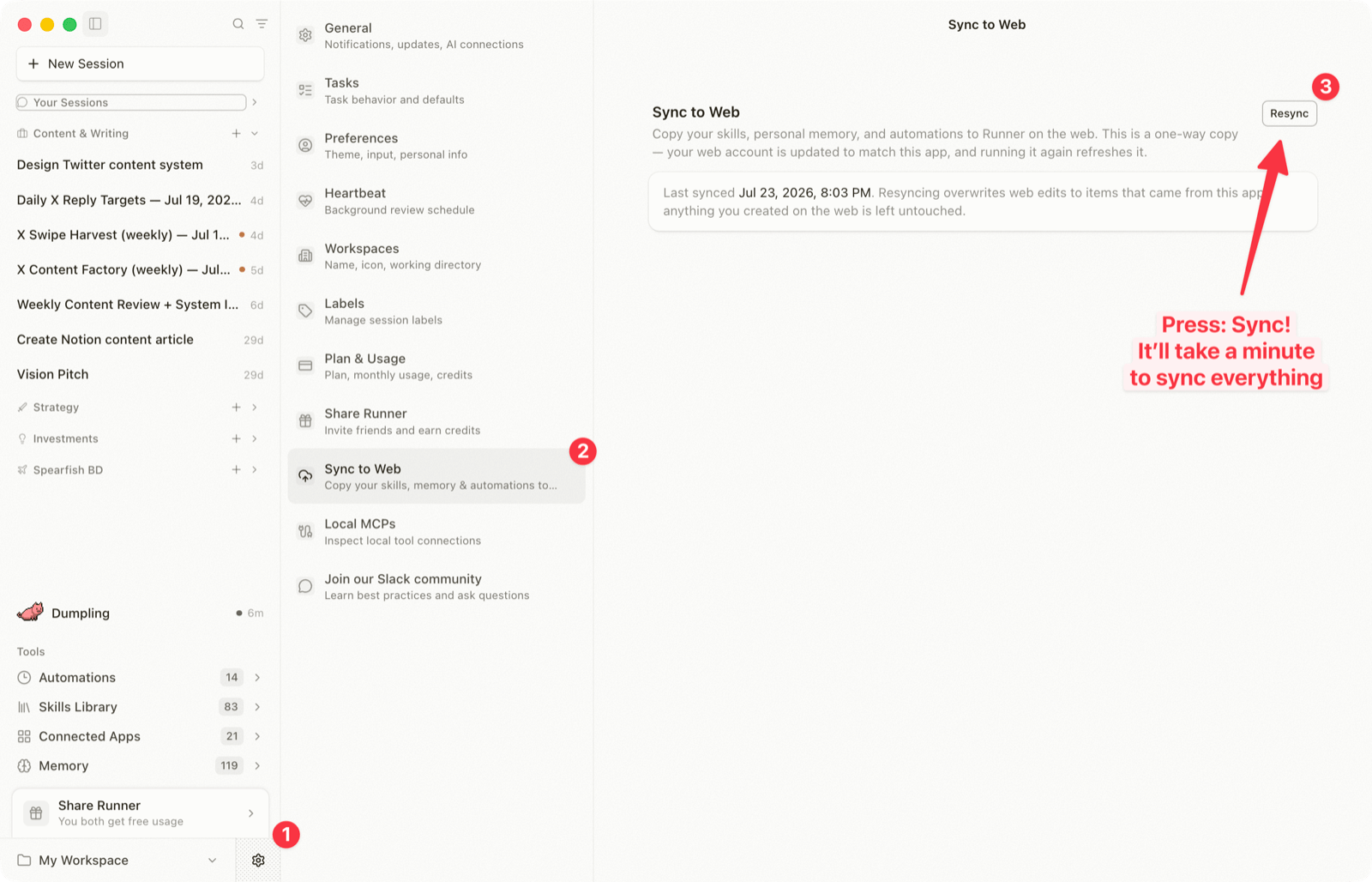 It's a one-way copy. Run it again anytime (the button reads **Resync** after the first run) to refresh the web with your latest desktop state.
For any individual chat session you want to keep, open that chat on desktop and type:
```text theme={null}
/move-to-runner-web
```
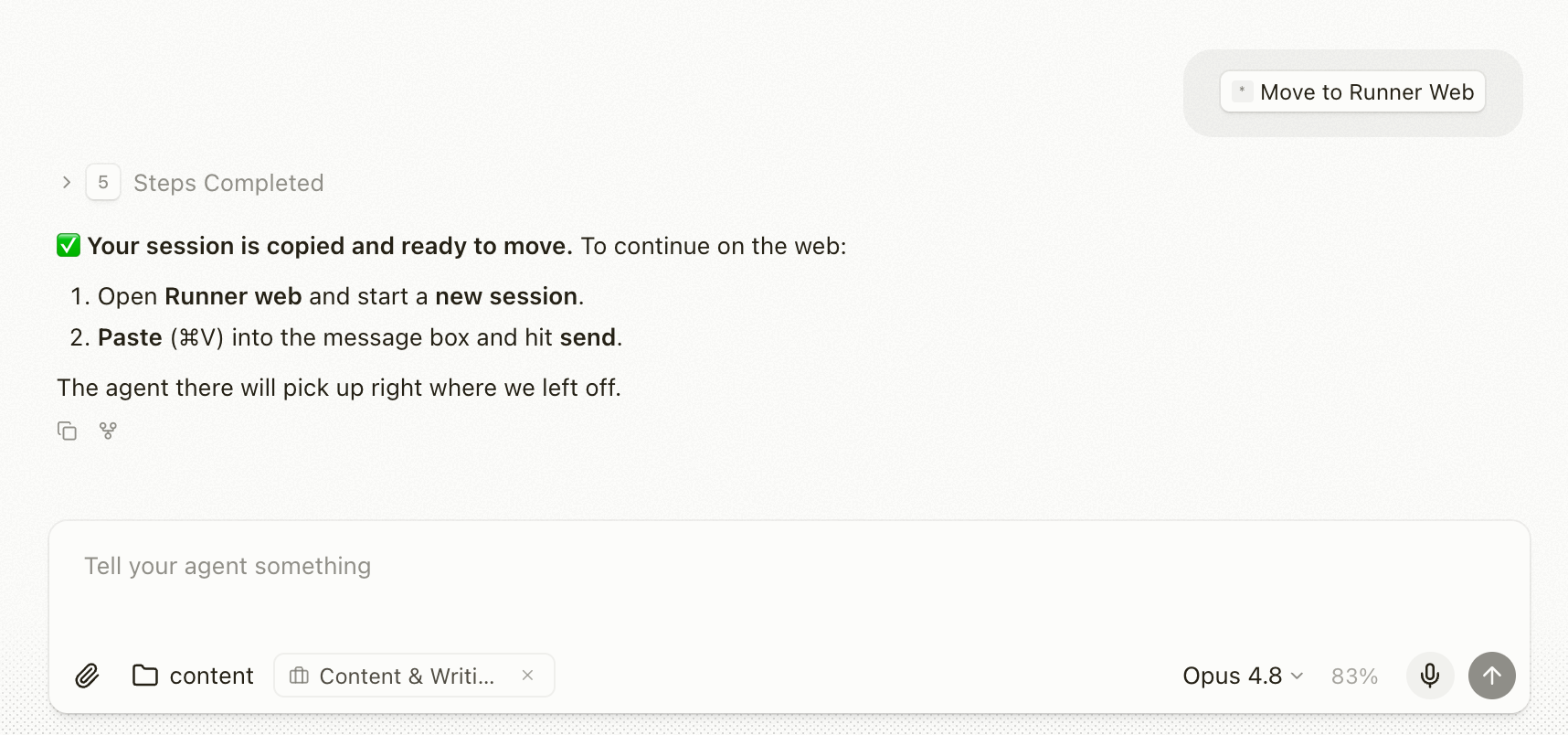
The **Move to Runner Web** skill pops up as soon as you start typing `/move`.
It's a one-way copy. Run it again anytime (the button reads **Resync** after the first run) to refresh the web with your latest desktop state.
For any individual chat session you want to keep, open that chat on desktop and type:
```text theme={null}
/move-to-runner-web
```
The **Move to Runner Web** skill pops up as soon as you start typing `/move`.
 Runner summarizes the chat's full context and copies it for you. Open a new session on the web and paste (`Cmd+V` or `Ctrl+V`). The web session picks up right where the desktop one left off.
 You don't need to do this for every chat. Just the ones with context worth keeping.
Go to **Connected Apps** on the web and reconnect Gmail, Calendar, Slack, and the rest.
Why don't connections migrate? Security. Your app credentials never leave the environment they were created in. Reconnecting takes about a minute per app.
That's it. You're on Runner v2.
## Review migrated Runners
Migrated automations arrive paused. Before you turn one back on:
1. Give it one clear job tied to revenue, cost, time, or customer delivery.
2. Check its saved prompt, schedule, timezone, Project, model, and permissions.
3. Click **Run now** and inspect the result and tool activity.
4. Turn on one schedule at a time so you can see what each Runner adds.
If two migrated Runners do the same job, keep the better one. A few clear jobs beat a crowded sidebar.
***
## Uninstall the desktop app
We strongly recommend deleting Runner Desktop once you've migrated. It won't be maintained past September 1st, and nothing on the web syncs back to it.
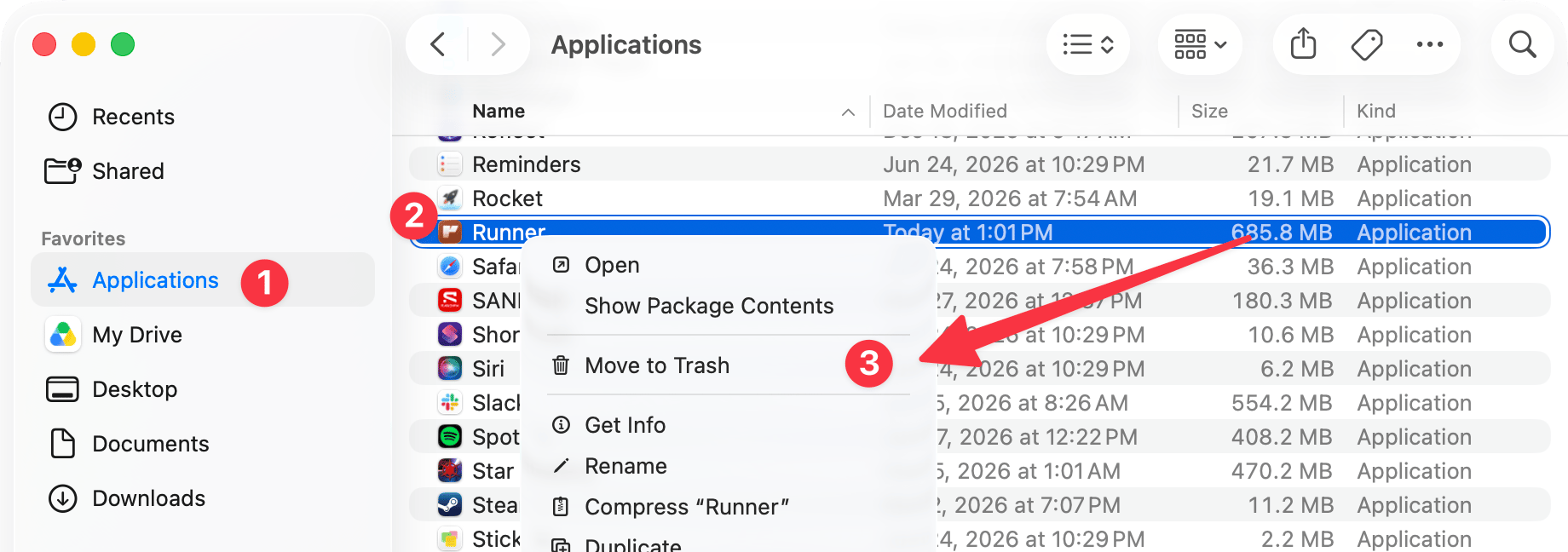
* **Mac:** Open your Applications folder, right-click Runner, and choose **Move to Trash**.
* **Windows:** Start menu, then **Uninstall Programs & Applications**, and remove Runner.
You don't need to do this for every chat. Just the ones with context worth keeping.
Go to **Connected Apps** on the web and reconnect Gmail, Calendar, Slack, and the rest.
Why don't connections migrate? Security. Your app credentials never leave the environment they were created in. Reconnecting takes about a minute per app.
That's it. You're on Runner v2.
## Review migrated Runners
Migrated automations arrive paused. Before you turn one back on:
1. Give it one clear job tied to revenue, cost, time, or customer delivery.
2. Check its saved prompt, schedule, timezone, Project, model, and permissions.
3. Click **Run now** and inspect the result and tool activity.
4. Turn on one schedule at a time so you can see what each Runner adds.
If two migrated Runners do the same job, keep the better one. A few clear jobs beat a crowded sidebar.
***
## Uninstall the desktop app
We strongly recommend deleting Runner Desktop once you've migrated. It won't be maintained past September 1st, and nothing on the web syncs back to it.
* **Mac:** Open your Applications folder, right-click Runner, and choose **Move to Trash**.
* **Windows:** Start menu, then **Uninstall Programs & Applications**, and remove Runner.
 ***
## Desktop FAQ
We'll never force you to delete it. But we heavily recommend moving on. Desktop and web are two separate apps that don't sync with each other, desktop stopped getting new features on August 3rd, and support ends September 1st, 2026. After that, desktop only works with your own API key.
New web-first Runner features ship to the web app.
Yes. Accounts are linked by email address. Sign in on the web with the same email you use on desktop and your plan and credits are already there.
Migrated automations arrive under **Runners** turned off by default, so nothing fires twice while you're moving over. Open the **Runners** tab and enable the ones you want. They now run 24/7 in the cloud, laptop open or not.
Skills are now **Workflows**: reusable instructions you invoke with `/slug` in any message. Workspaces are replaced by **Projects**, which organize your sessions and Runners by what you're working on. [More on Projects →](/get-started/projects)
Yes, happily. Message [kent@runner.now](mailto:kent@runner.now) or [charlie@runner.now](mailto:charlie@runner.now) on Slack or email and we'll set up a call. We'll do the migration with you and show you how to get the most out of Runner while we're at it.
***
## What's next?
Build your Personal Assistant on the web in about 15 minutes.
The other big reason we went web-first. Add Runner to your home screen.
***
## Desktop FAQ
We'll never force you to delete it. But we heavily recommend moving on. Desktop and web are two separate apps that don't sync with each other, desktop stopped getting new features on August 3rd, and support ends September 1st, 2026. After that, desktop only works with your own API key.
New web-first Runner features ship to the web app.
Yes. Accounts are linked by email address. Sign in on the web with the same email you use on desktop and your plan and credits are already there.
Migrated automations arrive under **Runners** turned off by default, so nothing fires twice while you're moving over. Open the **Runners** tab and enable the ones you want. They now run 24/7 in the cloud, laptop open or not.
Skills are now **Workflows**: reusable instructions you invoke with `/slug` in any message. Workspaces are replaced by **Projects**, which organize your sessions and Runners by what you're working on. [More on Projects →](/get-started/projects)
Yes, happily. Message [kent@runner.now](mailto:kent@runner.now) or [charlie@runner.now](mailto:charlie@runner.now) on Slack or email and we'll set up a call. We'll do the migration with you and show you how to get the most out of Runner while we're at it.
***
## What's next?
Build your Personal Assistant on the web in about 15 minutes.
The other big reason we went web-first. Add Runner to your home screen.