> ## Documentation Index
> Fetch the complete documentation index at: https://guides.runner.now/llms.txt
> Use this file to discover all available pages before exploring further.
# Runner on your phone
> Add Runner to your home screen and check results from anywhere.
Getting Runner onto every device was one of the main reasons we moved to the web. There's no app store download. You add [app.runner.now](https://app.runner.now) to your home screen and it behaves like a native app: its own icon, full screen, one tap away.
Same sessions, same files, same memories as your laptop. Dictate a task while you're walking to a meeting. Check the result or approve an Action Card when you sit down.
## iPhone and iPad
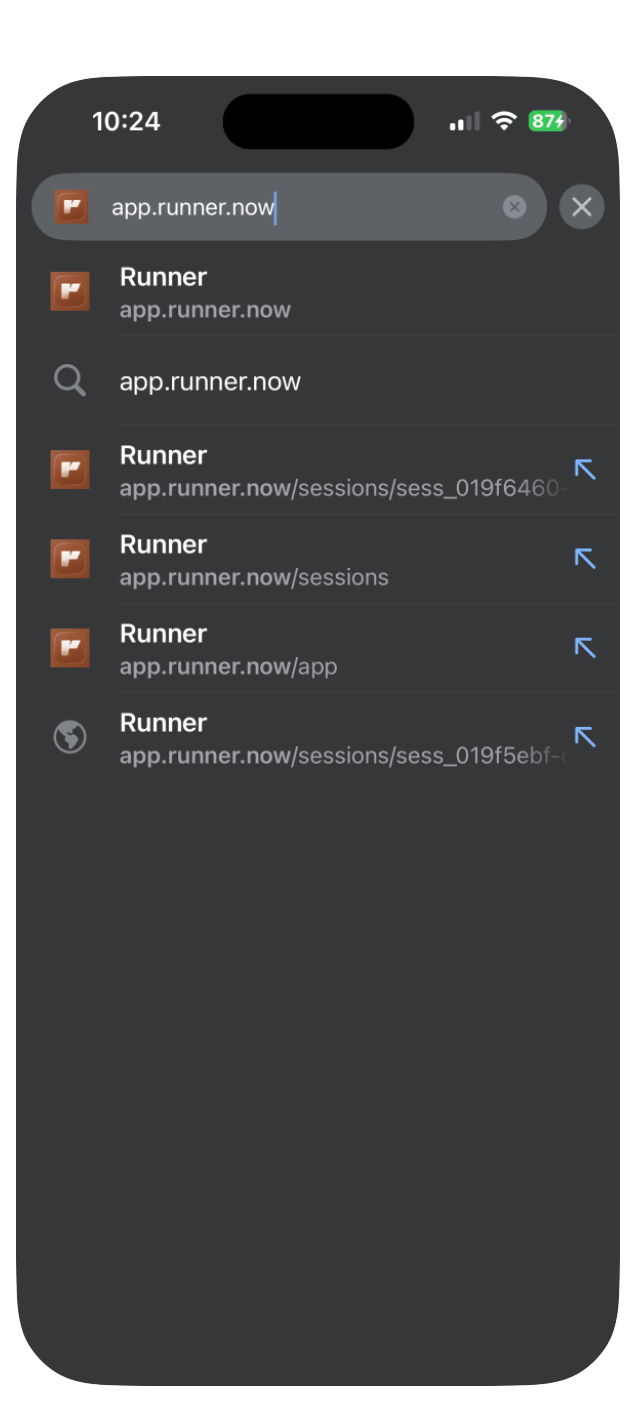
Go to [app.runner.now](https://app.runner.now) in Safari or Chrome and sign in. Everything you set up on your laptop is already there.
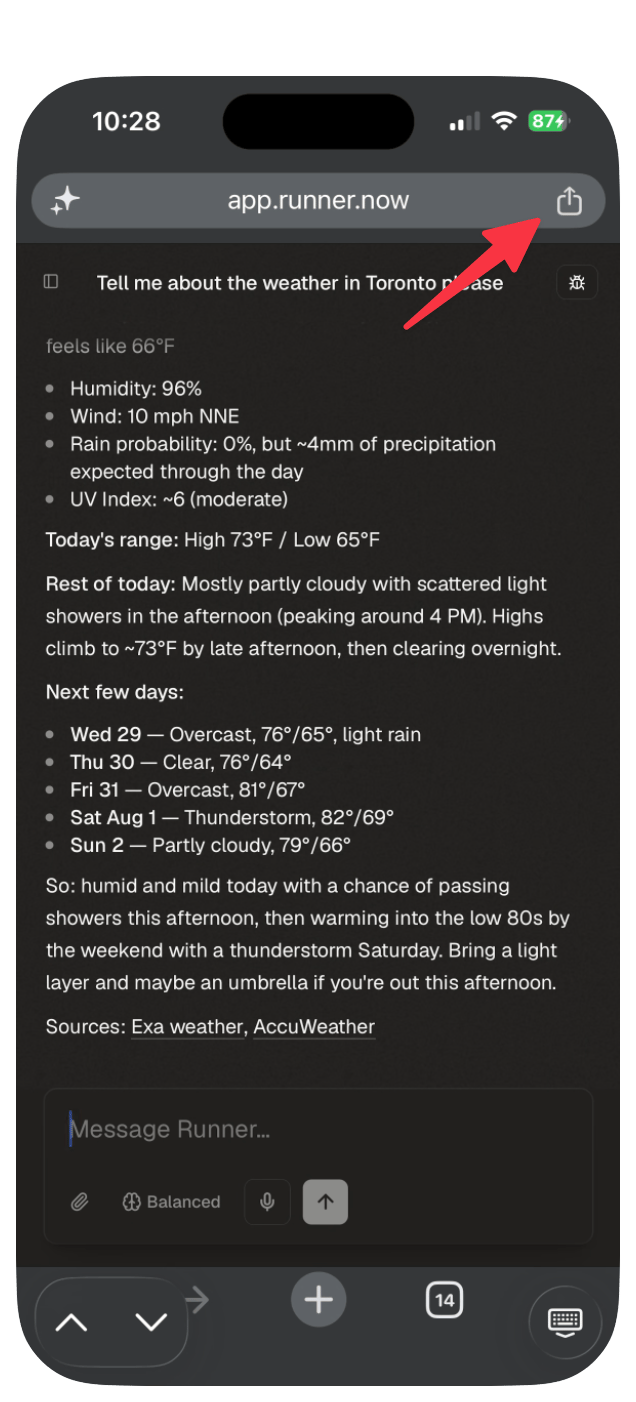
 Tap the **Share** button (the square with the arrow) in the address bar.
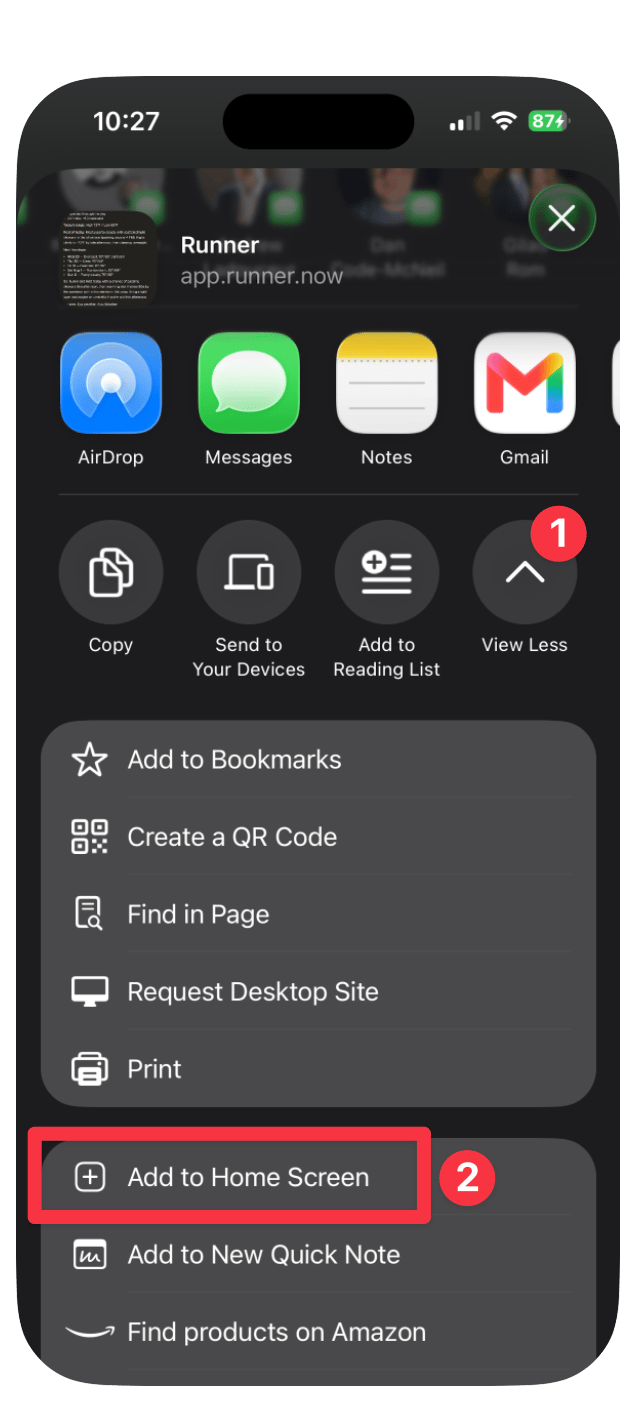
 Scroll down the share menu until you see **Add to Home Screen**. If you don't see it, tap **View More** first.
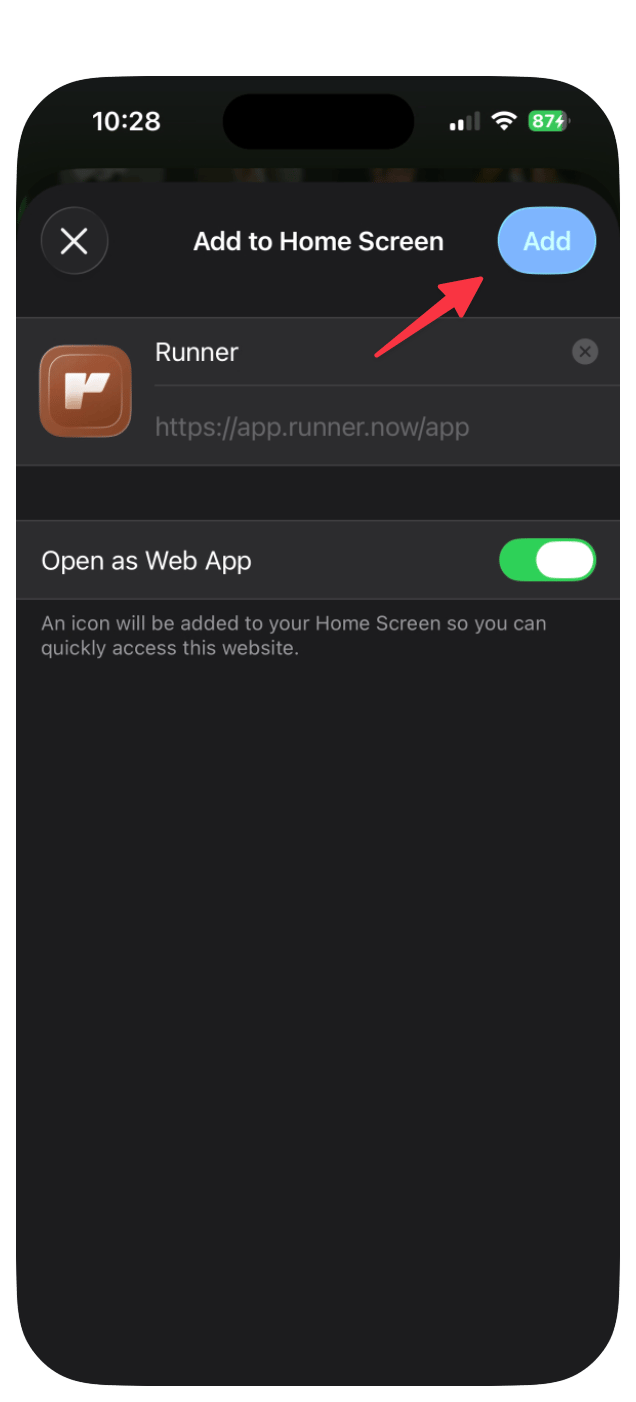
 Make sure **Open as Web App** is toggled on, then tap **Add**. Runner lands on your home screen like any other app.
 ## Android
Go to [app.runner.now](https://app.runner.now) and sign in.
Tap the **three-dot menu** in the top right corner.
Tap **Add to Home screen** (on some phones it says **Install app**), then confirm.
This works on anything with a browser: Chromebooks, tablets, your partner's iPad. Sign in, add to home screen, done.
***
## What people use it for
* **Voice notes on the go.** Tap the mic, describe what you need, board your flight. Runner works while you're in the air.
* **Reviewing Action Cards.** When a write tool is set to **Ask**, Runner stages an **Action Card** you can review from your phone. **Allow** performs the action without a card. **Off** blocks the tool unless a user-created Runner has its own override.
* **Reading your Daily Brief.** Once you turn its schedule on, each 8am run is available on your phone.
***
## What's next?
Haven't built your Personal Assistant yet? Start here.
See the recurring jobs and results you'll check from your phone.
## Android
Go to [app.runner.now](https://app.runner.now) and sign in.
Tap the **three-dot menu** in the top right corner.
Tap **Add to Home screen** (on some phones it says **Install app**), then confirm.
This works on anything with a browser: Chromebooks, tablets, your partner's iPad. Sign in, add to home screen, done.
***
## What people use it for
* **Voice notes on the go.** Tap the mic, describe what you need, board your flight. Runner works while you're in the air.
* **Reviewing Action Cards.** When a write tool is set to **Ask**, Runner stages an **Action Card** you can review from your phone. **Allow** performs the action without a card. **Off** blocks the tool unless a user-created Runner has its own override.
* **Reading your Daily Brief.** Once you turn its schedule on, each 8am run is available on your phone.
***
## What's next?
Haven't built your Personal Assistant yet? Start here.
See the recurring jobs and results you'll check from your phone.